
Homesberg Extension: Connect Your Airbnb
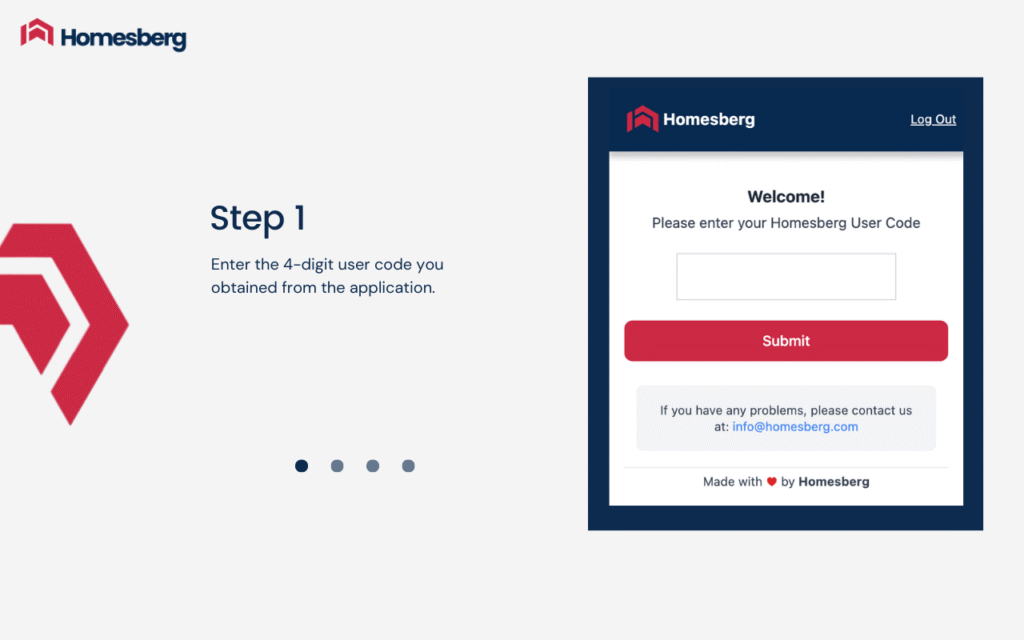
Step-by step guide to connecting your Airbnb account to Homesberg.
Scroll down for more details about the steps and screenshots guidance
1. Register at app.homesberg.com
2. After completing your registration log in to your account
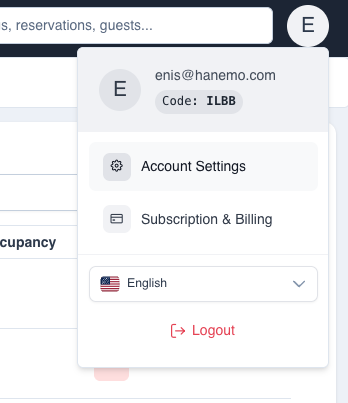
3. Note down the 4-digit code by clicking the profile icon in the top right, as we’ll use it later.
Alternatively, you can go to Account Settings > Connections for the same steps.
4. Go to Chrome Web Store or simply click the link and proceed to step 6.
Important note: The connection must be set up in Google Chrome (this step is required only once). After your account is connected, you can switch back to your preferred browser and/or delete the extension.
5. Search for Homesberg in the search bar and add the extension
6. Log in to your Airbnb account on airbnb.com
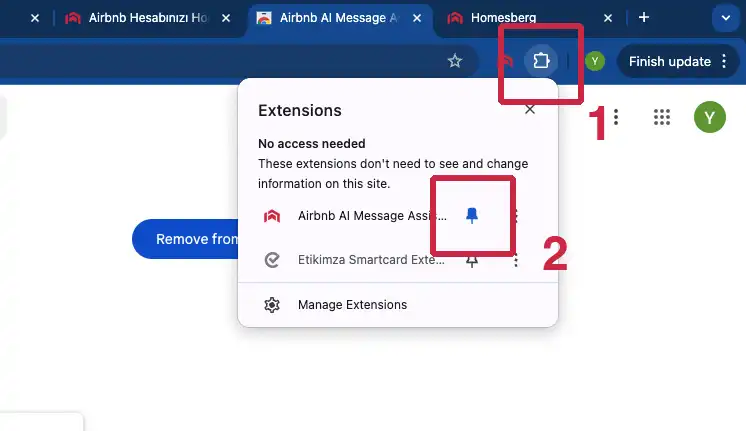
7. In the extensions tab of your browser, locate Homesberg and pin it (“puzzle” icon on the top-right corner of the window)
8. Enter the “Code” you noted down in step 3 and submit.
9. Click “Import to Homesberg” on the extension
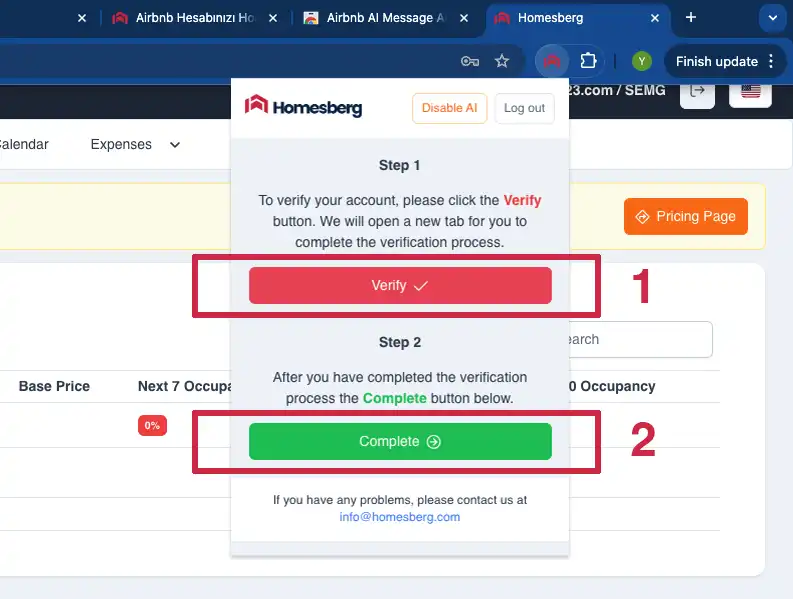
10. Click “Verify My Account” and then click “Continue” on the extension
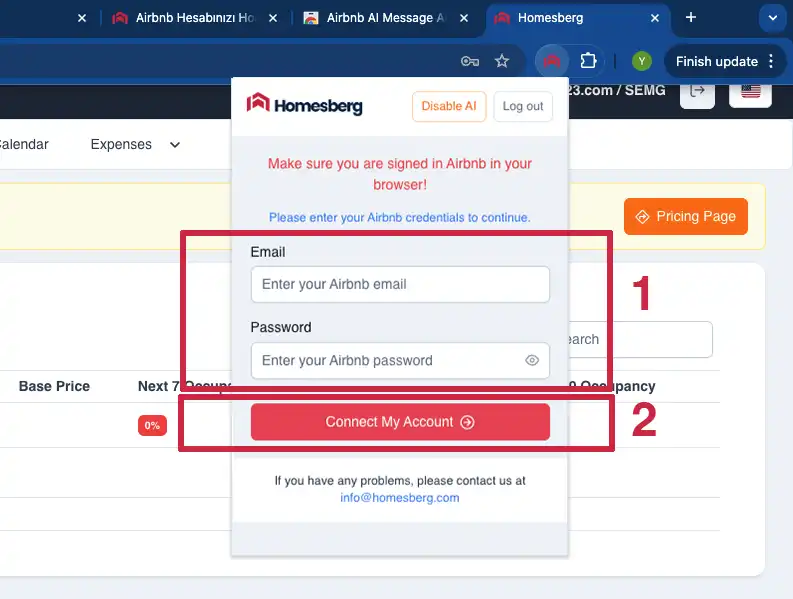
11. Fill your Airbnb account credentials on the extension and click “Connect My Account”
Important Note: To connect your Airbnb account to Homesberg, you must have a password set on Airbnb. If you currently log in using a social network or phone number, please first create a password for your email address by going to Account Settings > Login & Security on Airbnb.
Connection Guide: Linking Your Airbnb Account to Homesberg (with Screenshots)
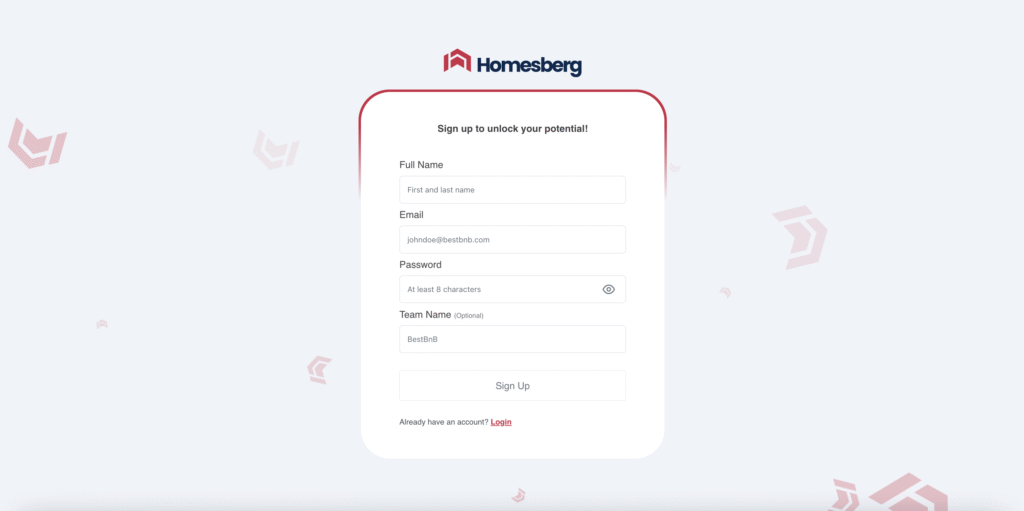
Step 1 – Sign up for the Homesberg application at app.homesberg.com.
After filling in the required information, you will receive a confirmation email at the address you provided. Before proceeding to the next step, make sure you have received the confirmation email and clicked the link inside it.
Step 2 – Log in to your newly created Homesberg account.
Step 3 – Once you have successfully logged in, click the profile icon in the top right to retrieve your code for use in the extension.
Alternatively, you can go to Account Settings > Connections for the same steps.
Step 4 & 5 – In the search bar of the Google Chrome Web Store, type “Homesberg”, find our extension named “Homesberg AI Message Assistant”, and click the blue “Add to Chrome” button in the top right corner to add it to your browser.
You can also use this link for the Homesberg extension.
Step 6 – Open a new window or tab and log in to your Airbnb account.
Step 7 – Pin the Homesberg extension on the Airbnb page where you are logged in. You can access the extension menu from the “puzzle piece” icon in the top right corner of your browser.
Step 8 – Enter the code (User Code) you noted down in Step 3 into the extension and click the “Submit” button.
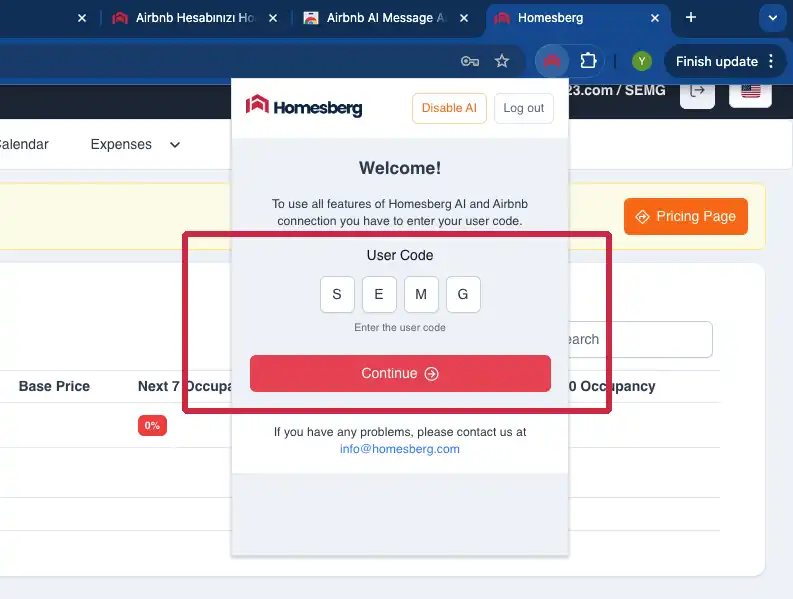
Step 9 – After entering your Airbnb account details in the extension, click the “Connect My Account” button to start the connection.
Step 10 – In the extension, first click the “Verify My Account” button, and then click the “Continue” button.
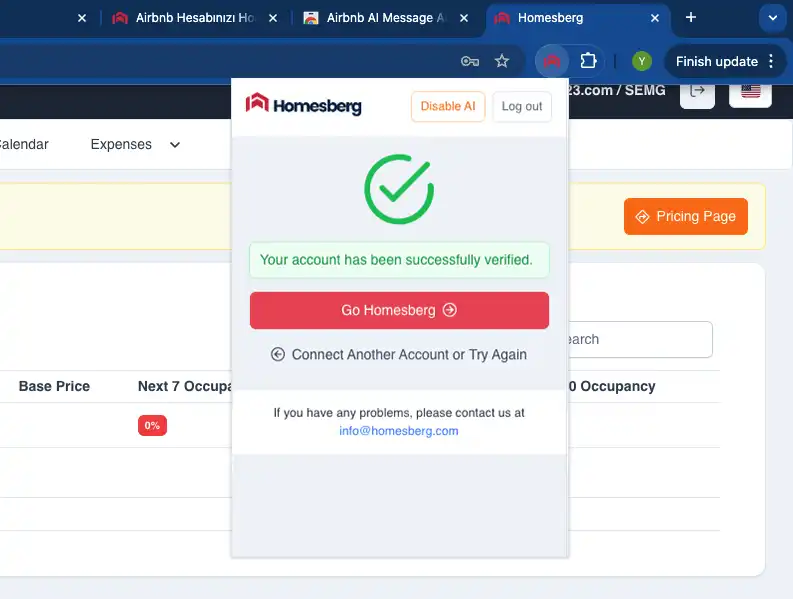
After the “Connection Completed Successfully” screen, you can start using Homesberg.
If your connection fails, please contact us at [email protected] with your contact details, and we will call you back as soon as possible.
Welcome to Homesberg!
Depending on the number of your listings and reservations, transferring all the data into the system may take up to 12 hours.
About Homesberg
Homesberg is a search-aware vacation rental management platform built around the features hosts actually need. Instead of treating pricing as a standalone lever, it aligns your strategy with how Airbnb search works—combining real-time market data, an Airbnb ranking tracker, and a powerful dynamic pricing engine. It also offers seamless integration with Airbnb and all major PMSs, so your pricing, availability, and performance data stay fully in sync across your entire stack.
Sign-up now to start your free trial.
